Showing posts with label Backup. Show all posts

11/14/15

UPS Battery Backup - Get one!

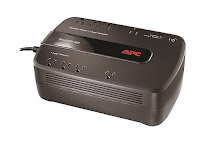
I live in a nice suburb of Seattle in a neighborhood that's not too old. You would think the utility infrastructure would be able to handle a storm or two without a power outage. Unfortunately that's not the case. That's why I bought an Uninterruptible Power System (UPS) system. If you value your computer you may want one too.


For computers & electronics, the sudden loss of power or power surges can cause a lot of damage. If you have a cheap power strip you may be protected from electrical surges, but they offer no protection against drops in line voltage, brownouts, blackouts, and other power supply issues. A true UPS system will protect your system from surges as well as these other issues.
My home has experienced several major outages and one very bad voltage surge. When the surge happened it burned out a lot of electronics before my breakers tripped. I lost a lot of electronics that I never thought of protecting: Garage door openers, sprinkler control box, oven electronics, etc. But I did protect my computers so thankfully those came through unscathed. The sad part is that even though my computers were safe my data wasn't so lucky. The sudden shutdown corrupted my HD. Call me a one trial learner. That next week I purchased a UPS system. 
There are a lot of sites out there to help you decide what to buy but basically it comes down to -

  • How much capacity do you need?
  • How much runtime do you need/want when the power is out?
  • Should you buy a pure sine wave UPS?
  • How many devices should you include on your device?

I won't bore you with how to calculate your max power or Amp-Hour requirements. There are plenty of sites that will help. I will briefly touch on the Sine Wave issue ... Make sure your UPS has it. 
This site covers the details well but modern electronics need clean sinusoidal power to work. A simple square wave approximation may not be enough. 

So once you have your UPS sized, picked out, ordered and unpacked what do you do? Well, first you plug it in and attach all your devices. The batteries will charge up quickly and you are ready to go. But there is one last step. Using OS X to control what to do when the power goes out.


OSX has a nice feature in the System Preferences that automatically shows up when you attach a USB cable from your Mac to your UPS. After connecting your UPS system via USB open System Preferences and go to "Energy Saver." You should now see a new tab titled "UPS"


Select the "Shutdown Options" to configure what to do in the event of a power outage.

Set the options the way you want them and select "Done". Now you are protected! In the event of a power outage your Mac will control all the peripherals attached to the UPS and shut down using the parameters you set. However some other smart devices can also control your UPS systems. In some cases you may want a NAS or other device to decide on your shutdown options. 

Here's a Synology NAS control panel option that shows it's UPS configuration set up.


Whatever device you use to control your UPS make sure you set it up so you are fully protected. A good UPS for a home computer set up will cost anywhere from $80-$250. It's cheap insurance to have to protect your computer. Computers cost money but can be replaced in most cases it's your data irreplaceable so protect it!


8/25/14

Backups: It's not just for computers

As anyone who knows me will tell you, when it comes to backups I'm a belt & suspenders sort of guy. In fact, add in a rope & duct tape as well. In the past I've covered some of my backup software choices as well as some choices for backup destination. Today I'd like to remind you that not all your critical data resides on your computer and that data needs to be backed up as well.


If you are like most Apple users you probably have a Mac or two, an iPhone and maybe an iPad, an Airport, a printer and maybe even a NAS. If you took my advice you already backup your Macs and if you configured your iPhones & iPads correctly they will either backup to iCloud or to your Mac when you plug them in. But what about your Airport, printer or NAS? Do you back up those configuration files? Trust me, if they fail recreating those configuration files can be a real pain so why not have a backup?

Airport Router Configuration Backup


Let's start with the AirPort. If you use another brand of router the method might change but backing them up is just as important. Open up the Airport Utility. This application is usually located in the Utilities folder.

Select the main Airport and click "edit"

A drop down window will then show up but don't edit or change anything. Just go to the menu and select "File" the "Export Configuration File ..." Make sure to save that file where you can access it later if you need it. If you store it on your Mac the file will be automatically included in your normal daily Mac Backups and your Monthly backups. You do back up monthly and store a copy offsite don't you?


Save the file and quit the application.  Should you ever need to restore the file just use the same steps and use the "Import Configuration File ..." selection.

NAS Backups

If you have taken the plunge into the NAS world you will want to make sure you have a copy of your NAS configuration file. How you back this file up depends on the type of NAS you have. Since I have a Synology NAS I'll show you how to back that file up. If you have another type of NAS just refer to the manual. Remember RTFM is a motto to live by. 

Log into your webpage as admin and open the control panel. Make your way to "Update & Restore" and select the "Configuration Backup" tab.


hit the "Back up configuration" button and save the file. 


As you can see it will back up settings that you spent a lot of time configuring. 

Switch Configuration Backup

If you have a complex network you may have a switch in addition to your Airport or other router. In my case I have a Cisco network switch. Because this is a an active switch I have spent some time setting it up and configuring it. 

If you have a configurable switch you can log in via the web interface and back it up. In the case of my Cisco switch it's as simple as selecting the "Download Backup Configuration" under File Management and selecting the Backup option. 


Again, save the file on your Mac under a directory that you can find later. When your Mac does it's backup you will also include a backup of all your other devices as well. A backup of a backup if you will.

Printer Configuration Backups

Did you know that some printers are configurable via a web interface? My Brother Laser printer is. Although there isn't a file you can back up you can do multiple screen shots of your configuration to help you if you need to re-run the configuration. 


Save the screen shot in your backups folder so you can use it later or use a notes or password storage application.

Other Configuration Files

Backing up information isn't just duplicating configuration files. Sometimes you need to record important information in case you need to set up or re-do a set up for applications. 

Can you rattle off the SMTP and IMAP server names for all your email accounts? What about the VPN or VNC information you use on a regular or semi-regular basis? All this information should be backed up and stored. 

Because of security concerns please don't use paper. For one it's just too easy to loose. So what should you use?  I recommend an application like 1Password or SplashID. They aren't just for passwords any more. There are other apps that do the same thing but these password/information storage applications are secure and work well for me. 


Here's the 1Password screen for email accounts


And this is a screenshot of SplashID's version of the same thing


Wrap Up

Some data is just too important to risk loosing. Other data is just a pain to reenter or reconfigure. Either way you need to back up. If you do so on a regular basis or when you buy something or get a new account, then it won't be too onerous a task. But don't look at your data and think it's just too much. If you only back up one account or item per day then you will at least be making a start. And with  anything, small steps will start you on your way and overcome your procrastination. 

5/7/11

Backups - Choose your Destination

A backup is like religion - when you need it most and don't have it, you become a true convert and wonder why it took you so long. I've had my bacon saved by a backup more times than I would like to count. Take it from personal experience and do a backup now before disaster strikes. And be sure about this, disaster will strike!! 


Maybe you've been thinking you're safe and you can just reload your system if something goes wrong. Sure you can reload your OS from an Apple restore disk but what about your personal data? What are those pictures from your last vacation worth to you? How about all your music or video files? Some are irreplaceable and if you lose them, they are gone forever. So protect yourself, your pictures, and your data, and do a backup.


When starting a backup for the first time, one of the things to decide is what are you going to back up to. Will you backup to a DVD or CD? Will you backup to an internal or external hard drive? Maybe you should use one of the many online backup services. My answer to these questions is: Yes! All of them should be part of your plan. If you think that's overkill then you've never had your hard drive crash and loose all your data. By spreading out your options you get the best chance to recover your data when things go wrong. With the right backup plan it won't be a chore to have multiple backups. So let's talk about those destination choices. 


Using DVDs for your Backup


If you have a 1TB hard drive and want to backup all your data to DVD it will take a while. Oh, and by the way, you will need over 200 DVDs. 200 DVDs is two 100 packs worth of disks and at Costco sale price it will run you about $40 for every backup. That isn't a lot of money to keep your files safe but in this economy it's not chump change either. Because of cost and time you  may be  tempted to only backup part of your data. That's OK. Having some of your data backed up sure beats having none of it backed up. Just be sure to store your DVD/CD somewhere where they will be safe.  


One thing to consider about DVDs is that the data stored on it may not be as permanent as you think. Did you know that DVDs fail? Over time, even if the disks aren't scratched or broken, DVDs can stop working and that time varies by manufacturer. "Only 47 percent of the recordable DVDs tested indicated an estimated life expectancy beyond 15 years. Some had a predicted life expectancy as short as 1.9 years." Do you really want to risk losing all your data after only 2 years? All in all backing up to DVD can be an easy way to backup smaller amounts of specific data but it isn't the best way to do regular backups of all your data.


Backing up to a Hard Drive


Backing up to in internal or external hard drive is probably your best option for backing up everything you have. Hard drives are cheap these days and run you pennies per GB. Backup is fast, convenient and allows you to have incremental backups. You can backup every hour if you want which will allow you access to the most up to date files if you need them. If you use Apple's Time Machine you won't even have to buy software. It's included with the OS. The big down side is safety. Aren't you backing up because you fear your main hard drive will fail? And now you are trusting another  hard drive to backup to. So using a hard drive is cheaper and faster than DVDs but there are still risks.


There are other safety considerations other than outright hardware failure.  Because hard drives are attached to your computer they might perish along with the computer in a fire or flood. In the event of theft they might be stolen along with your computer. If you want 100% assurance that your data will be there when you need it you may need to make multiple backups and keep one hard drive off site.


Off site Backup


So one key to a successful backup plan is to have off site storage of your data. You can backup some of your data to DVD and store it somewhere else.  If you can afford it, buy two hard drives. Keep one and do regular daily backups and use the other to do a full backup, then have a friend or relative keep it at their house. The problem with that is both DVDs and hard drive off site backups is that  you need to continually do a manual backup and move it to another location.  Unless you do it frequently your data will be out of date when you need it. Maybe one of the online backup services is a better choice. Especially if you are a procrastinator and won't don't make that second backup when you should. 


There are a lot of online backup services available. Some, like Apple's own MobileMe, have a limited capacity. Others like Carbonite, Mozy or Crashplan have the ability to backup your full hard drive but you pay a lot more for the service. Another thing to consider is security. Do you trust the online backup with your personal data? Are you SURE no one will have access to it that isn't authorized? Your data may be encrypted but there have been many cases about hackers getting personal information from online services.  Make sure you don't delude yourself into thinking that no one would ever be able to get to your data.  Just because some online company assures you that will never happen doesn't mean it won't happen.  Online backup is a great solution if you have the money to spend, a fast Internet connection and are willing to trust an online service with your precious data.


As you can see each backup destination has some gaps. But if you use a combination of all three backup types you can cover those gaps and give yourself the best chance of recovering data when you need to. 


I've only scratched the surface of the backup topic. Over the next few days I'm going to go into more depth and publish a series of articles about how to do backups, what software you can use and some easy methods to get started. I hope you'll be back to read them.