Showing posts with label iPhone. Show all posts

9/20/18

Should You Upgrade to a new iPhone?


A lot of people are asking if they should upgrade to the new iPhone XS, XS Max or XR. There's a ton of articles out there on camera performance, A12 Bionic chip, new waterproof standard, etc. What's not discussed is how it works as..., well, a phone. 

The biggest beef I have with my iPhone 6s, besides battery life, is the reception. My cell reception is horrible in many of the areas I frequent. I didn’t pre-order a phone because
 I want to make sure there’s a real difference in antenna design. 

I've done some digging and I thought you might be interested in what I found out. Since I’m going to stick with T-Mobile as my provider I will concentrate on those highlights but ATT & Verizon have similar impacts.
  • All of the new iPhone models support 27 LTE bands including the new T-Mobile 600MHz LTE band! That means the new phones can access T-Mobile network on more bands. More bands leads to better reception when T-Mobile upgrades their cell towers. 
  • The iPhone Xs and Xs Max & Xr have Multiple in Multiple Out (MIMO) LTE band connection abilities. But only the Xs and Xs Max have 4x4 MIMO. That means they support four antennas at the transmit end and four antennas at the receive end.  The Xr only supports 2x2 MIMO. With 4x4 MIMO you can potentially quadruple speeds if you have good cell reception or (like me) in areas of poor reception it will use all 4 antennas ganged together to make for a stronger signal. 
  • In addition to MIMO the phones also have gigabit LTE antennas that use part of the unused WiFi spectrum (where available). This means over short distances (because WiFi reception is limited in distance) you can get VERY fast connections up to gigabit speeds. T-Mobile and others are building out this ability in high congestion areas like sports stadiums, downtown areas, and shopping malls.
  • All the new phones sold in the US are universal. There is NO difference between a T-mobile version, ATT version or Verizon version. However, if you buy through your provider it will be locked to that provider so buy an unlocked phone or buy it from Apple. All phones purchased through Apple are unlocked.
  • You can have two SIMS active on two different networks. If you travel or (crosses fingers) if your work allows, you might be able to have 2 phone numbers and one phone. This will use one physical SIM and the e-SIM. However the e-SIM won’t be enabled until later this year. 
So, it looks like I’ll upgrade. I’m not sure when or which phone yet but for me it will be either the Xs or the Xr. I’m going to wait for a few of the Xr reviews before I upgrade.

11/19/16

Please Disturb

If you value your sleep you probably configured your iPhone to use the "Do Not Disturb" function. iOS allows you to silence all calls, texts and alerts for a specific time period. But what if you want to allow calls or texts through even if "Do Not Disturb" set up and active?


Recently, my pregnant daughter asked my wife to help her during birth. Kind of an assistant doula if you will. Since most births occur during the wee hours of the morning my wife needed to set up her phone to allow calls and texts to come through even when "Do Not Disturb" was set.

Before iOS 10 the only way to allow users to call you was to open "Settings", navigate to "Do Not Disturb" and select "Allow Calls From"


BUT...you could only allow calls from all the people in your favorites or a select a specific group you wanted to grant access. If you only wanted one person to have access you would need to set up a brand new group and add that one person. Starting with iOS 10 you can now grant access to a single person inside your contacts application.

Open "Contacts" and select the person you want to grant access and Edit the contact. Now you just need to select "Ringtone"  and make sure the "Emergency Bypass" is selected. If you want to allow Texts through as well just edit the "Text Tone" the same way and enable the same "Emergency Bypass" switch.


That's it! Now even if it's the middle of the night that persons calls and texts will make it through and you won't miss the birthday party!


7/1/15

USB Power Outlet - Amazon SALE!

One of my most popular posts is about a replacement wall outlet that includes 2 USB ports for charging your devices you can read about it here: Fastmac U-Socket USB/Power Outlet.

Since I first published that post way back in 2011 several other companies have come out with similar products. Today I just want to give you a heads up that Amazon is having a sale on the Leviton 15-Amp USB wall outlet with built in USB ports.


My Fastmac USB Outlets are still working great but you can always use more ways to charge your devices. With these outlets you don't have to hunt down your wall wart, you can just grab a cable and plug it in.

At $18.52 for Amazon Prime users, these outlets look like a great deal, go out and order several. They will be shipped same day for free. That's a deal!


6/18/15

Apple Photos - How to Stop Autolaunch

One of my hobbies is photography. I love taking tons of photos and over the years I have developed a workflow involving Adobe Photoshop, Adobe Bridge and Adobe Lightroom. I used iPhoto and more recently the new Apple Photos, but not as my main go-to application. Therefore I was quite annoyed when each and every time I plugged in my iPhone or SD card Apple Photos would open. Here's how to shut that off. 


Open up Photos and plug in your SD Card or iDevice. Go to the "Import" tab and look at the upper left corner of the window. 


All you need to do is uncheck the "Open Photos for this device" box and Photos will not autolaunch when you plug in your device. 

The somewhat annoying part is that you will need to do this for each and every device you plug in. But once you have plugged them in and unchecked the box all should be well and Photos won't autolaunch.


BONUS Section

People tend to forget applications they haven't used for a while (or in some cases never even knew existed). Image Capture is one of those applications. 


Image Capture has been around a long time and is installed by default in the Applications folder.  You can use Image Capture to do all sorts of things including using a scanner, sorting your photos, quick emails or even make a contact sheet. You can also set what you want to happen when you plug in a SD Card or idevice. 

Find Image Capture in your applications folder and open it up. Once open look in the lower left corner of the window. You will see almost the same import configuration options as you see in Photos.


If you don't see the import pull down menu (shown in the red circle above) hit the very small arrow box in the lower left corner. That symbol is Apple's universal icon for "There's more stuff here if you hit me!" In this case it toggles the import view on and off. Once open use the pull down menu to set the application or no application to autolaunch. 

Using Image Capture also allows you to set the import location or what to do with the photos on import. Just use the "Import To" pull down menu at the bottom center of the window.


As you can see there are a lot of cool options, even build a web page! How easy is that.  

If you are a photographer and take even a modest amount of photos, getting rid of small annoyances, saving time and streamlining your work can really pay off. These tips may not make you a better photographer but they definitely help your workflow.

1/4/14

Using Photo Stream to Save All Those iPhone Photos


One of the things my family loves to do is take a lot of photos. Now that we all have iPhones we take even more photos than ever! The biggest issue with all those photos is making sure they are safely backed up. You never know, you may lose your phone or your IT spouse may "helpfully" delete them off your phone to save some space. The Readers Digest version is this: In order to permanently save your iPhone photos you need to download them to your computer. To do that I use Photo Stream. 


To use Photo Stream you need an iCloud account and an Apple Device (iPhone, iPad or iPod Touch). There are a lot of benefits to enabling Photo Stream but there are also limitations. I'll go over those in a second. 

To set up Photo Stream first make sure you have an iCloud account then go to “Settings" and "iCloud" then choose “Photos” and enable “My Photo Stream"


Once you have PhotoStream enabled all photos you take are automatically uploaded to your iCloud account. Here's my list of Photo Stream basics that everyone needs to understand.

  • Photos uploaded to Photo Stream do not count against your iCloud storage. so your basic 5GB iCloud isn’t impacted by the number of photos you take. 
  • By design, Photo Stream only keeps the last 1000 photos in a rolling album. If you are on a trip and take a LOT of photos only the last 1000 are kept. If you take 1001 photos then the first one you took will be deleted out of the album.
  • Photo Stream photos are saved on the Apple iCloud server for 30 days from the date you added them to Photo Stream. After that they are DELETED!

  • If you shoot in burst mode only the final composite image will be uploaded to Photo Stream.
  • New photos are automatically uploaded to your Photo Stream when you leave the Camera app and are connect to WiFi. They won't be uploaded over cellular connections.
  • If you delete a photo from your camera roll it won't necessarily be deleted from the cloud if it's already been uploaded to Photo Stream. This can cause some embarrassing moments if your AppleTV is set to display your photo stream as a screen saver. (please don't ask how I know this!)
  • If you sign out of iCloud or turn off Photo Stream all photos are removed from that device. Other devices aren't affected. 
As I said above, if you want to save your photos permanently you will need to download them to your computer. The easiest way to do that is use Aperture or iPhoto. Since it comes free with every Mac I use iPhoto.


In the iPhoto Preferences there is a setting under iCloud to make sure the photos are downloaded. 


Once that is done, all your photos will be downloaded to your iPhoto library and appear in Photo Stream Events organized by month. Even if your photos are more than 30 days old and no longer in iCloud they will be saved.

Now that you have all your great photos on your Mac just make sure your backup software is backing up your iPhoto library. You never know when your HD might fail!


7/8/13

Cell Phone Privacy

By now everyone knows that the NSA is listening to your phone calls. It's scary and annoying but there's not a lot you can do about it short of dumping your cell phone and living inside a faraday cage. Privacy is something you don't know you care about until it's gone. So what can you do? How about not letting your cellular service sell your data to third parties and marketers.


It's not to hard to opt out of this intrusion into your privacy. Just click the links below for your carrier, log in and opt out of the program. Remember that almost anything free on the web isn't.  There is always some sort of ad, data mining, third party pop-up that's paying the bill.  Keep your guard up and try to maintain your privacy. Once you loose it, it's almost impossible to get it back!


* Thanks TechCrunch for the links

4/22/13

How to Edit Your Playlist On Your iPhone

With the iPhone now a permanent part of my daily life one thing that has changed is music. Music is always playing in my house and because everyone now has an iPhone or iPod. 


Music sets a mood, makes someone laugh or can help set the tempo of a workout. Our normal mode of operation is to load up our iPhones, iPads and iPods with music by plugging into the computer and syncing up. You can do the same thing via WiFi or iTunes Match but we find it more convient and faster to just cable up. After you unplug and are on the go, one thing that isn't clear is how to change the order of your playlist. 

If you want to change your playlist on your iPhone just open up the playlist and click the "Edit" button. 


You can delete a song by selecting the red circle beside the song then hitting the red "Delete" button that pops up. 

If you want to reorder the playlist click on the bars off to the right of the song yo want to move, hold it down and drag it to the position you want. When you have it where you want it click "Done".


When you are done your playlist will be in the order you want and you are ready to enjoy your music in the order you want it!


2/10/13

Key Ring an Alternative to Passbook

When Apple's iOS Passbook was announced I knew Apple had another hit on their hands. Being able to slim down your inch think wallet by getting rid of your reward cards, membership cards and gift cards would be wonderful. Too bad the reality didn't match the promise. To me Passbook is one of those applications with great potential but just doesn't match the hype. Don't get me wrong I love the idea of Passbook I just think that right now, the better digital wallet is Key Ring.


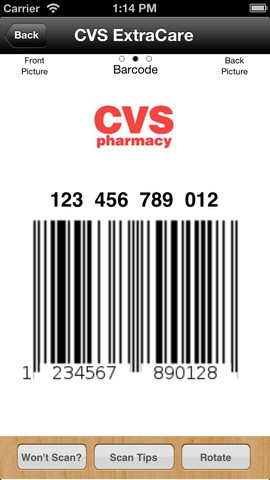
Key Ring is an iOS app that allows you to ditch all the paper and plastic and store all your rewards cards, coupons, membership cards and gift cards digitally. Unlike Passbook, you can easily scan your existing barcodes and add them to your key ring with a minimum of a hassle. You also can set it up to receive digital coupons from your favorite retailers and automatically add points to your reward cards. But the main feature for me is Key Ring's ability to store any type of card that you want to digitize.


First a clarification; Passbook will allow you to add your own card but it's difficult. You need to visit one of several web sites, register with them and then hope the vendor you want is listed.


Most of the sites are also geared toward merchants, not to the customer. PassSource, PassTools are two of the better sites so give them a try. The biggest drawback is that Apple's Passbook application only allows you to use only 2D types of barcodes (Aztec, BDF417 & QR). If you have a membership card with a numeric or alpha numeric barcode you are out of luck. So what the heck does that mean you ask?

Open your wallet and pull out one of your loyalty cards or a coupon. If the barcode is just a bunch of lines then it's either a numeric or alpha numeric barcode. If the barcode looks like a bunch of squares jumbled together then it's a 2D Barcode.


If you are interested you can read more about barcodes here.

So let's use an example from real life. The Seattle area, where I live, is currently rated number 2 in the country as the most literate cities in the US. One of the factors for literacy is the number and usage of libraries. Like a lot of families, everyone in my family has their own library card and can put books on hold. That means that when someone stops by the library to pick up books they need to know every card number and PIN for every member of the family. Rather than copy each card or write down the numbers use Key Ring.

Open the app and from the main menu select "Add Card." Lay your card in front of you and scan the barcode


You can now enter in details about your card. Choose "Select a Retailer" & Key Ring will give you a choice of Loyalty Card, Gift Card or unknown. Choose the card type and scroll through the provided list and select your card vendor. In the case of my King County Library System (KCLS) card I choose unknown for the card type then choose "Other Retailer Not Listed" from the provided list. I input "KCLS" For my title and under description input "library".


If for some reason you need to need to edit the barcode you can. You can rescan your existing card or just edit the number. If you know it, you can even change the barcode type and choose to hide beginning and trailing digits. 

Because I happen to know that KCLS uses codabar with a mod 10 check digit I made sure that "codabar" was selected in the list and the first and last digits were hidden.  More then likely you wont need to do this step. But it's nice to know you can if you must.

Once you are done with any edits you can hit the save button and you are finished. 


The rest of the app is very straight forward. There are tips for how to make sure your newly created card will scan correctly, registration for backing up all your cards and even an "offers" list for online bonuses and sales. 

If you are like me and your wallet is thick with extra cards and you want to ditch the extra weight, then this app is a godsend. It will allow you to quickly store all your data in one location for fast access and safe storage, and you will never again forget your cards at home (unless you forget your phone). Give it a try and let me know what you think.


1/1/13

Santa's Best Intentions...

Ever since I was a kid I loved getting tech toys for Christmas. When I was younger I remember screaming for joy when I found a Walkie-Talkie set under the tree. When I was in Jr. High Santa splurged and got me a real LED watch. WOW it was cool! Who cares that it ate batteries like a hungry teenager goes through PB&J sandwiches.

Later on, when I was in High School, I got my first calculator. That calculator really stands out as a perfect tech gift from Santa (my grandfather really). It was the RPN (Reverse Polish Notation)  HP-25C. It was an awesome gift for a high school geek and future engineer. But what do you do when the gift isn't perfect?

This year I gave Santa my VISA card and had him bring me a Citizen Eco-Drive Bluetooth Proximity watch. It sounded perfect: Bluetooth communication with my iPhone, on the wrist alerts for email & phone calls all in a great looking solar powered body.


On Christmas day, after the carnage of the all the wrapping paper was cleared, I sat down to set it up. I read the manual, watched the set up movies on the included USB drive and finally got it to work, ... for about 5 minutes. That's when things went south. I'm talking southern hemisphere south.

The watch relies on a cool iOS app that sets things up for you. You first must pair the watch and your phone but once you have that working the app allows you to sync time, receive alerts & find your phone if you've misplaced it.


So if you hear a giant "but" coming you're right. Yes the watch is complex and not easy to set up but I figured that I would only need to do the paring and set up once. The problem is keeping it paired and working.  I discovered that if the Bluetooth connection between the watch and your iPhone drops it just won't work again unless you go through the whole pairing/set-up procedure again. After the fifth time this happened I hit the Internet and found I wasn't alone.

A whole host of issues is outlined on the Amazon review section for the watch. Various blog posts and tech reviews also outline some of the issues. Couple this issue with the fact that the watch won't alert you to SMS & iMessage texts and I realized that just maybe this was one tech gift that didn't work out.

I'll admit it, I was blinded by the tech and the all the promises the PR guys made. The watch is beautiful and and has potential but like the eMate or Newton it just wasn't ready for prime time yet.  After agonizing for a day or two I decided to return it.

The moral of the story is that for every HP calculator, iPhone or iPod there's a Nokia N-Gage or Microsoft BOB. I have no doubt that in the near future someone will get it right. Maybe it will come from Pebble or Meta Watch or just maybe (fingers crossed) it will come from Apple.

As a true watch lover I won't be one of those youngsters who give up their watch and exclusively use their cell phone. I want both. And I want them to work together. Maybe next year.

11/19/12

Creating iPhone Ringtones

Now that I've had my new iPhone 5 for a couple of months I've finally started to get my phone configured the way I want it. The apps I use most frequently are on the main screen. I've created folders for utilities, different types of games, and for the photography apps I have in abundance. But the one thing that really personalized my phone was setting individual ringtones for people.

Ringtones are a very nice way to personalize your phone and let you know who is calling as soon as you hear it. You can buy ringtones through Apple but did you know you can create your own? It isn't obvious, but creating your own ringtone is an easy thing to do.

A lot of blogs have a step-by-step on how to create a ringtone for free using iTunes or GarageBand. You can look at those instructions here, here or here. Rather than re-do those instructions I want to show you how easy it can be using an almost free solution.


For only 99 cents you can download a great ringtone application called, appropriately enough, Ringtones. This inexpensive solution will really speed up your ringtone creation and allow you to create an unlimited number of ringtones from any DRM-Free song in your iTunes library. Since Apple now allows you to download the DRM free version of purchased music it basically means anything in your library.

The Ringtones application interface looks a lot like iTunes. When you open the Ringtones application it will display your entire iTunes library of music including all your playlists. Your first step is to select the song you want to use for your ringtone.

Once you have selected the song the wave form of your song will be displayed at the bottom of the screen. If you don't know what a wave form is don't worry about it. Just think of it as an audio map of your song. The key will be to find the section of the song you want to use for your ringtone. Whatever is inside the blue rectangle will become your ringtone.

You can grab and move the blue selection left or right to get just the part of the song you want. You can also grab the left or right side of the rectangle to change the starting point, end point as well as the length of the ringtone.


At the bottom of the window you can set manually set the ringtone loop size, fade in or out and adjust the volume. To hear how your selection will sound just hit the "Preview" button. As your ringtone plays the selection will loop continuously until you stop it. You can adjust the starting points and stopping points during preview and get just the section you want. After you have the perfect selection, click the "Send to iTunes" button on the lower right and you are done.

Now when you open iTunes and select "Tones" you will now see your brand new ringtone!

Your next step will be connecting your iPhone and dragging the ringtone to your phone.

Apple makes great software but how you add a ringtone to an individual contact isn't one of their great moments in ease of use or interface design. To add your new ringtone masterpiece as the ringtone for a specific individual open the contacts app on your iPhone and select the person's entry you want to modify. In the upper right corner select "Edit."


Now scroll down and click on the ringtone arrow button. 


Select the ringtone you created and added to your phone and you are ready to go!


You can use ringtones for phone numbers, text tones, Facebook Post or any sound that the iPhone uses to alert you. Those sounds are available in the Settings App under "Sounds" and you can change them the same way you modified the contact information. 


Now you can stop worrying about all the little details and just concentrate on being creative while you build your ringtone library!