Showing posts with label iTivo. Show all posts

10/30/13

Use cTiVo to download your TiVo programs to your Mac

In the past, one of the only options available to transfer files off your TiVo and onto your Mac was iTivo. It is a simple utility that performed admirably  when it worked. The biggest issue was it's infrequent updates. Every time Apple Mac OS was updated you needed to use your terminal skills to get iTiVo to work again. I've written several blog posts giving instructions on how to get iTiVo working after the upgrade to Mac OSX 10.8 Mountain Lion.

Tivo & the Mac - Downloading Tivo files
Continuing Adventures with iTiVo
TiVo to Mac - Mountain Lion Edition
TiVo to Mac - iTivo Update

Recently Apple just released Mac OS 10.9 Mavericks and once again iTiVo was broken. Rather than dive in and try to fix it I hit up Google to see what everyone else was saying. Low and behold I stumbled across an application called cTivo.  


All I can say is WOW! Finally! An application that works out of the box without any terminal tweaking. Where have you been hiding cTiVo?!?

cTivo describes itself like this:

"cTiVo is inspired by the great work done on iTiVo, but written in Cocoa/Objective C for better performance and compatibility. Current or former users of iTiVo will find a detailed comparison and upgrade path described in iTivo Users."

It's much faster than iTiVo and once you put in your TiVo's MAK address it will scan your network for all your TiVo devices. 

There are a lot of preference settings to play with that give you tons of options.


You can download the decrypted file or transcode it to many different formats to match your device.


Once you have selected the show to download and the format you want click the download button and it will start to download. 


Download progress is marked with a red highlight bar. Additional files are queued up and automatically downloaded when the first file finishes. 

If you have used iTiVo in the past, run, don't walk, and download cTiVo. It looks like the days of struggling with iTiVo are over. Unlike iTiVo the last update for cTiVo was 2014. I just hope that the developers keep the updates coming. 

3/20/13

Workflow Processing Multiple Files - TiVo Edition


It seems that there are a lot of people that have been struggling with their TiVo. Like me they want to watch shows when the want, where they want and on the device they want. The problem is getting the recorded show off the TiVo, decrypted, edited then transcoded into a file type that their personal device can play. 

I originally wrote about an application called iTiVo that made this process a lot easier.

TiVo & the Mac - Downloading TiVo files

Then an OS update broke iTiVo so I wrote up a work around. You can read about it here:

TiVo to Mac - Mountain Lion Edition

After a few months, when iTiVo finally became usable again, I wrote up a quick way to update the beta version to get full functionality back. 

Continuing Adventures with iTiVo

I don't know when iTiVo will be updated to work without major surgery but hopefully it will be soon. So while we wait I want to answer a question that has been asked a lot during this whole process; How do I create a Apple Workflow that will process multiple files? This question doesn't just apply to processing TiVo files of course but I'll use that as my example.

Apple provides a great tool for speeding up and automating your work tasks. It's called Automator. It's an easy tool to get to know but getting it to do just what you want, in the way you want can be a trial. 

Let's assume for a minute that iTiVo is broken again and you want to watch the entire season of Supernatural that currently sits on your TiVo. Downloading the files is easy. You can use the web version I wrote up here, or if you have Roxio's Toast you can use the included "TiVo Transfer" application to download your files. Either way you end up with a file on your Mac that is encrypted. So let's decrypt them. 

Assuming you have followed all my directions you should have a copy of tivodecode loaded on your Mac. Now all you need is an Automator Workflow to convert all the files. Not one at a time, but in a batch so you can set it running before you go to bed. 

Open up the Automator application and create a new Workflow


In the column at the left you will need to select "Files & Folders" icon on the left then drag the "Ask for Finder Items" into the window pane on the right.  In the "Prompt" section just type in "Choose a Tivo file(s)" and fill the folder location you normally use when you download your Tivo files.  To handle multiple files make sure that the Type is set to "Files" and "Allow Multiple Selection" box is checked. 


In order to deal with multiple files we need to assign them as variables. Select "Utilities" from the Library and drag "Set Value of Variable" to the right window pane. In the Variable box create a new variable. I called mine "Tivo_File". 


Just as an explanation, the variable "Tivo_File" will be set to the file or files you select manually when you run the action. The value of the variable will be the full name of the file including path.

example:

.../TiVo Files/Supernatural_Hunteri_Heroici_111 KSTWDT_1363233538.TiVo

This is a very important point that we will have to deal with later in the shell script. The tivodecode application needs both the path to the file and the file name.  Now that the variable is set we need to use it.

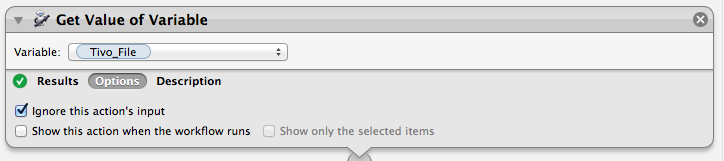
Again select "Utilities" from the Library and drag "Get Value of Variable" to your script. It seems odd, and you would think the computer should remember the variable because you just set it, but that's the way scripting works. Especially when dealing with multiple files. Make sure that the Variable is set to "Tivo_File" or whatever name you choose in the set variable value step.


Another important point is to make sure the "Ignore this action's input" check-box is checked in the options tab since our input is the variable itself. 

Now that we have our variable we need to run a shell script to decode it. Grab the "Run Shell Script" action from utilities and move it to the Window pane on the right.  Make sure the "Shell" is set to "/bin/bash". 

The first thing we do is start a loop to process each of the files you selected. I have titled my loop counter as the letter "i".  

      for i in "$@"
       do

After we start our loop we need to decode our variable and just grab the file name without the full path information in front of it. To do that I choose to use the UNIX awk command. There are a lot of ways to do this but this one works. The assumption here is that your file name extension has .TiVo at the end. Or to be more exact, it has a dot "." and an extension at the end of the file name.  I've set the file name to a script variable called "fname". 

fname=`echo $i | awk -F"/" '{print $NF}'| awk -F"." '{print $1}'`

After we have the file name we need to run tivodecode. 

tivodecode -m 1234567890 -o "/MacHD/Users/Username/Movies/$fname.mpg" "$i"

Remember to insert your real MAK address into the command where I have put "1234567890". Also insert the real path to your output file. The output file will be the same as your downloaded TiVo file name but with an ".mpg" extension.  The "$i" at the end of of the statement is the full path & filename. Make sure to inlude the quotes as I have shown above.

Since that's all the processing we need to close the loop by adding "done" at the end of the script.   This is how your script should look.


Since that's the last step here's a copy of the entire automator action


You can check your script at this point by hitting the run button at the top. If it all works as planned you are ready to save your Automator Workflow as an executable app. Make sure it's saved as an application in the "File Format" drop down menu.

Happy converting and I hope this answers the question of how to process multiple input files in a single script. 


2/20/13

Continuing Adventures with iTiVo

Getting shows off Tivo and into the Apple environment has been an adventure. I first blogged about a method using an application called iTiVo. It was a basic straightforward method that was easy to use. Then iTiVo broke when I updated to OSX 10.8 Mountain Lion. 

Because I still wanted to watch my shows on my AppleTV, iPhones and iPad I wrote up a work around that actually works well. It had a few hicups but once you get things set up it you are back in business. Then iTiVo got fixed! Hallehluya!  I could use the original iTiVo method again. 

But now, as of 2/20/2013, iTiVo broke when Tivo updated their software. When you try to download a show you get an error that says "Couldn't Download 'show name'"


The good news is that once again the iTiVo community  has a work around that will fix it. 

The fix involves using the Terminal app and some editing of some resource files inside iTiVo. Don't worry, it's nothing too difficult. The first thing you will want to do is download the latest iTiVo application and make a copy. Always, ALWAYS work any edits to program resource files on a copy. That way if you mess up you don't have to re-download the application. Once you have downloaded and made a copy we can start the edits.

Open Terminal and type in this command: 

curl -c ~/Documents/cookies.txt -d "tivo:MAK" http://tivoip:80

(replace "MAK" with the Media Access Key and "tivoip" with the ip of your tivo). To find out the IP address of your Tivo you can look at my previous blog post which uses LanScan from the Apple App Store. Your command might look something like this:

curl -c ~/Documents/cookies.txt -d "tivo:9876543210" http://192.168.2.20:80

This command will output a file called "cookies.txt." that will be placed in your home directory in the Documents folder. Once you have run the command, you will need to edit the cookies.txt file. Of course, before you do that you will want to MAKE A COPY! 

Open your Documents folder in your home directory and find the cookies.txt file that you just created and duplicate it. Call it something like cookies_ORIG.txt. Now edit the file called cookies.txt using your favorit text editor (Text Wrangler, Text Edit or even VI) . It will look something like this.


The problem that iTiVo is having is caused by an expired cookie. The "1360972800" in the cookie.txt file is the number of seconds past the beginning of the world. And as every geek knows the beginning of the world started on January 1, 1970. You will need to change that value to something much larger. I just changed the first 1 to a 2. Now save the file. 


Now that you have your updated cookie file set up you need to edit the iTiVo resource file to point to it.  Find the copy of iTiVo  you made and right-click, and click "Show Package Contents". 


Go to Contents folder and drill down to the Resources folder.  Find the file called "http-fetcher.pl" right-click it. Using the "Open With" command  open it in Text-Edit or other editor. Find the long line of code that has this in the middle of it:


...... -c /tmp/cookies.txt --retry 12....

You will need to update the cookies.txt location to show the new /Users/'home folder'/Documents/cookies.txt" location.  Make sure to update the line with your information by changing  'UserID' to your user account. Don't for get to change the flag from "-c" to "-b"


...... -b /Users/UserID/Documents/cookies.txt --retry 12....


Then re-open iTivo and it should start working again!

1/9/13

TiVo to Mac - iTivo Update

I first wrote about moving your Tivo files to your Mac using iTivo here. When Mountain Lion broke the application I did an updated post outlining a work around here. Well, I'm happy to inform you that there is an update to iTivo, the application that makes it easy to download and decrypt your tivo files. iTivo now works with OSX 10.8!


Although the application is currently in beta release it does work. You can download the application on this web page.  Make sure to download the latest copy and give it a test drive and see if it works for you.

When things were still broken you may have tried to fix things by adding a soft link to find your Tivo on the network. Since you no longer need that link you can remove it using terminal. Open terminal and type:


cd /usr/bin

ls -al mDNS

The computer should return something like this

lrwxr-xr-x  1 root  wheel  15 Jul 26 11:54 mDNS -> /usr/bin/dns-sd

to remove your link type the following

sudo rm mDNS


That's it. You should be done.  Happy downloading!


UPDATE - 2/20/2013

As of 2/20/2013 iTiVo is working again. The application does needs a manual fix however. Please download the latest iTiVo and apply the fix outlined in the this MacITHelp post. 

7/31/12

TiVo to Mac - Mountain Lion Edition

With every new OS update from Apple you get a lot of cool new features. Unfortunately you also get a few apps that don't work. One application I rely on for getting TV shows off my Tivo is iTivo. I wrote about it here in a previous post. After I upgraded to the new Mountain Lion OS  I found that iTivo was broken. Now I had to go to plan B if I wanted to watch my favorite TV shows on my iPad or AppleTV. Thankfully plan B works great. It just takes a few more steps. 


UPDATE - 2/20/2013


The work around outlined below works fine but as of 2/20/2013 iTiVo is working again. The application does needs a manual fix however. Please download the latest iTiVo and apply the fix outlined in the this MacITHelp post. 


Part 1 - Finding Your Tivo


Our first step is downloading your TV show from your TiVo to your Mac. To get download your shows you first have to locate your TiVo on your network and log in. Did you know that you can actually log onto your tivo from any web browser? No, well you can but you need to know the IP address that your Tivo is using. The easiest way to figure that out is to use a free application called LanScan.


You can download LanScan from the Apple App Store here. Once you have LanScan installed start it up and scan your network. You should see a screen like this:


You will notice that my Tivo has the local IP address of 192.168.2.10.  Armed with that information you can now log into your Tivo using your favorite web browser and grab your files.


Part 2 - Logging into Your Tivo


Open up a browser window and type in the IP address you found above. For this login you will want to use a secure login so make sure to type in the "https://" before your IP

           https://192.168.2.10

Once you do that you should see a login screen like this one:


The User Name will always be "tivo" and the password will be your personal Tivo Media Access Key (MAK). If you don't know what your MAK is follow these steps. On your TiVo box go to TiVo Central > Messages and Setup > Account & System Information > Media Access Key. Write that number down, you will use it a lot to get things working. 

Once you log onto your box you will now see all your current recordings.


To download a show just click the download MPEG-PS link and your file will be transferred from your Tivo to your Mac. Remember though that it will be encrypted so your next step will be to decrypt the file.


Part 3 - Getting the Decryption Software


The software to decode the TiVo files isn't a standard Mac application and runs under UNIX. To get things to work you will need to download and install a small UNIX application then build a script to use it.

Don't worry, it may seem daunting but I've done all the leg work so this is going to be easy. I've included a lot of screen shots for each step so just follow along. First you need to download a file set called MacOSX_tools from an application called kmttg.

Once you have it downloaded and decompressed it open up the folder and find the file called tivodecode. It's at the bottom and only 66KB in size.


You now need to start channeling your inner UNIX geek and use the terminal to copy the "tivodecode" file to a specific location on your Mac. 


Part 4 - Loading the decryption Software


Open up the terminal application. You will find it in the Utilities folder inside the Application folder. 


Once it's open you need to go to the /usr/sbin location where you will install tivodecode. Type in 

    cd /usr/sbin

Now type in "sudo cp"  and drag the tivodecode file you downloaded to the terminal screen. When you drag a file onto the terminal screen it will automatically that files current location and type it in for you. Now finish the command by typing a "."  The period says 'copy this file to my current location'. So the full second command  might look like this:

  sudo cp /FTP/kmttg_MacOSX_tools_v0p8l/tivodecode/tivodecode .

After you you are sure you have the command correct hit the return key. You will be prompted for your password and then the command will be executed. Hopefully everything will work fine and tivodecode will be installed. To check if it was copied you can perform the list command to see.

  ls -al /usr/sbin/tivodecode
  -rwxr-xr-x@ 1 root  wheel  57096 Jul 30 16:32 /usr/sbin/tivodecode

You should see tivodecode listed rather than "No such file or directory".


Part 5 - Creating a script to decode your Tivo Files


Now that you have installed the software you will want an easier way to run tivodecode rather than use the terminal. The easiest way is to create a script. To do that use Apple's own Automator application located in the applications folder. Find it and open it up. 


Once it is up select "New" from the file menu and "Application" as the type of Automator file you want to create. You will only need a 3 step script to decode your Tivo files. Here's a picture of the script.


Your first step is to select the "Files & Folders" icon on the left then drag the "Ask for Finder Items" into the window pane on the right.  In the "Prompt" section just type in "Choose a Tivo file" and fill the folder location you normally use when you download your Tivo files.  

Now select "Utilities" from the Library and drag "Run Shell Script" to the Window pane on the right.  First make sure the "Shell" is set to "/bin/bash". In the Shell Script window type the following:

/usr/sbin/tivodecode -m <MAK> -o "/Folder/tivofile.mpg" "$@"

Remember to insert your real MAK address into the command and the real path to your output file. 

If you have Growl installed you can add this final step. It isn't really required but it does help you to know when your file is done decrypting.  In the "Utilities" menu find "Show Growl Notification" and drag it to the right side of the window. Now type in a title and description. 

Now that you are done editing save the file and make sure it's saved as an application in the "File Format" drop down menu.


Part 5 - Running the Script


This is the fun part. You have all the pieces in place to download your Tivo recordings & decrypt them. Start up the appliclation you just created and select a .TiVo file.

Once selected you will see the command you set up to run with your real MAK. If you want to change the location of the file or the file name you can do so here. Just highlight the text you want to change and type in a new name or path. 

Once you hit continue your file will process in the background and eventually you will see the notification that your file is done decrypting. VOILA!! you are finished. 

As you can see, it would be much easier to use the iTiVo application but until someone fixes it you have a work around. It's a lot of steps but nothing difficult. Let me know how it works out for you. When iTiVo pushes out an update I'll let you know.


UPDATE - 

It seems that some people are getting a "Bad CPU type" error when they try to run tivodecode. This is probably due to the compiled version downloaded above. There's a couple of things you can try to fix it. 

Download tivodecode from Source Forge. You can try the latest version or an old version.

Some people have also had success extracting tivodecode from the old, non-working, iTivo application.  Open the iTivo package contents by control+clicking on the iTivo application and selecting "show package contents". In the Contents/Resources folder you should find a copy of tivodecode. Drag a copy to the desktop (option+drag) and then move that version of the tivodecode file to /usr/sbin to see if things work.